CORSAIR has discovered an issue affecting some CORSAIR EX400U USB4 external SSDs that may prevent the drive from being mounted on certain macOS systems. The problem is caused by a malformed USB serial number presented to the host computer. Below is a table with the affected devices.
| Affected part numbers | CSSD-EX400U1TB, CSSD-EX400U1TBC, CSSD-EX400U2TB, CSSD-EX400U2TBC, CSSD-EX400U4TB, CSSD-EX400U4TBC, using Firmware version FW91.1 |
| Affected serial number range | Serial numbers beginning with AA2XB5270 through AA2XB5330 |
| Platforms the issue is occurring on | Mac with an M-Series chip (M1 and later) |
To fix this, CORSAIR has created the CORSAIR EX400U Serial Number Format Correction Utility. Running this utility updates the drive’s settings and permanently resolves the issue.
Download the utility from the link below by selecting “Storage” from the drop-down menu:
https://www.corsair.com/downloads
Supported platforms: Windows 10 (64-bit) and Windows 11.
Please disable any antivirus or security software and disconnect any other external drives to avoid interference.
How to use the utility:
- Connect the EX400U to a Windows PC using the included USB-C cable.
If the EX400U is the main system drive, please connect it to a different PC for this update. - Run the utility as an administrator. The utility may require approval to access some system functions.
-
When the EX400U appears with a yellow background in the utility window, click “Start Update”.
-
Once the “Update completed” message appears, unplug the drive, reconnect it, and the update has been completed.
- After completing these steps, the EX400U should mount normally on macOS.
FAQ:
Q: Should I run this correction utility even if I don’t plan to use my EX400U with macOS?
A: Yes. We recommend running the correction utility for all drives in the affected serial number range. This ensures full compatibility across all host systems, including macOS, now and in the future.
Q: How can I find out the firmware version of my drive?
A: For Windows 10 and later: Please download the Corsair SSD Toolbox here by selecting “Storage” from the drop-down menu: https://www.corsair.com/downloads
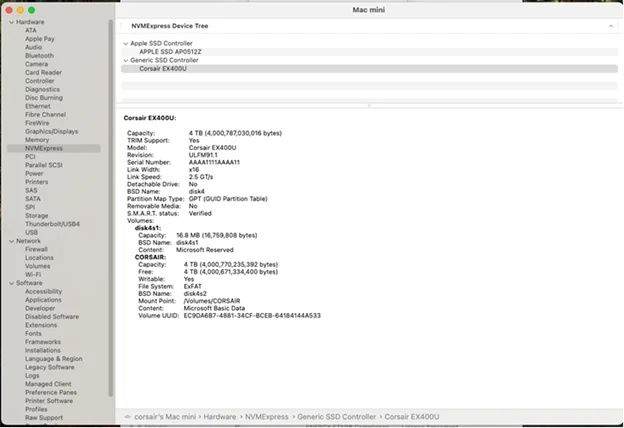
For MacOS, you can see the Firmware version in the MacOS System Information App, under NVMExpress:
For additional help, please contact CORSAIR support.